
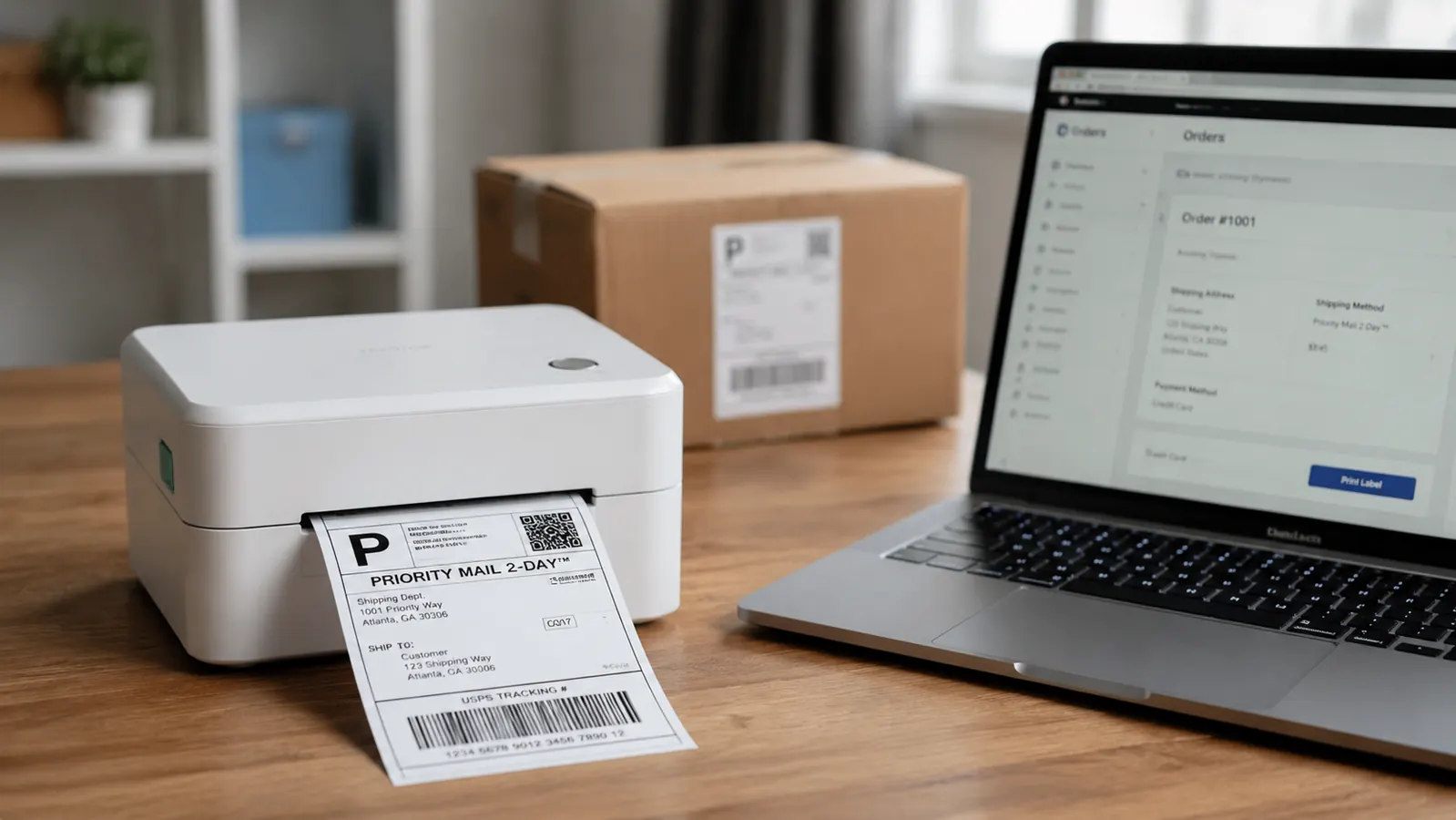
There are over 16,000 reviews of the Rollo USB Shipping Label Printer on Amazon. Most of them say the same thing: plug it in, it works, five stars. What they rarely say is what happens when the paper size setting in your browser is wrong, what 'commercial grade' actually means for a small operation, or why the included USB cable is useless on any laptop made after 2018. This review covers the Rollo from a perspective you do not usually get: setting it up and running it inside a client's small product business, working through the rough edges in real time, and landing on an honest verdict after the novelty wore off.
The short version: the Rollo USB Thermal Label Printer is one of the best value tools in a physical products business. The longer version has three things nobody prepares you for, and knowing them before day one saves a real amount of frustration.
The Quick Verdict
Genuinely fast, genuinely driverless, genuinely reliable once you clear the setup quirks. The USB-only design and the paper-size trap are real friction points that the glowing reviews routinely undersell.
Amazon Check Today's Price →Still cutting label paper? Your shipping station is costing you more time than it looks.
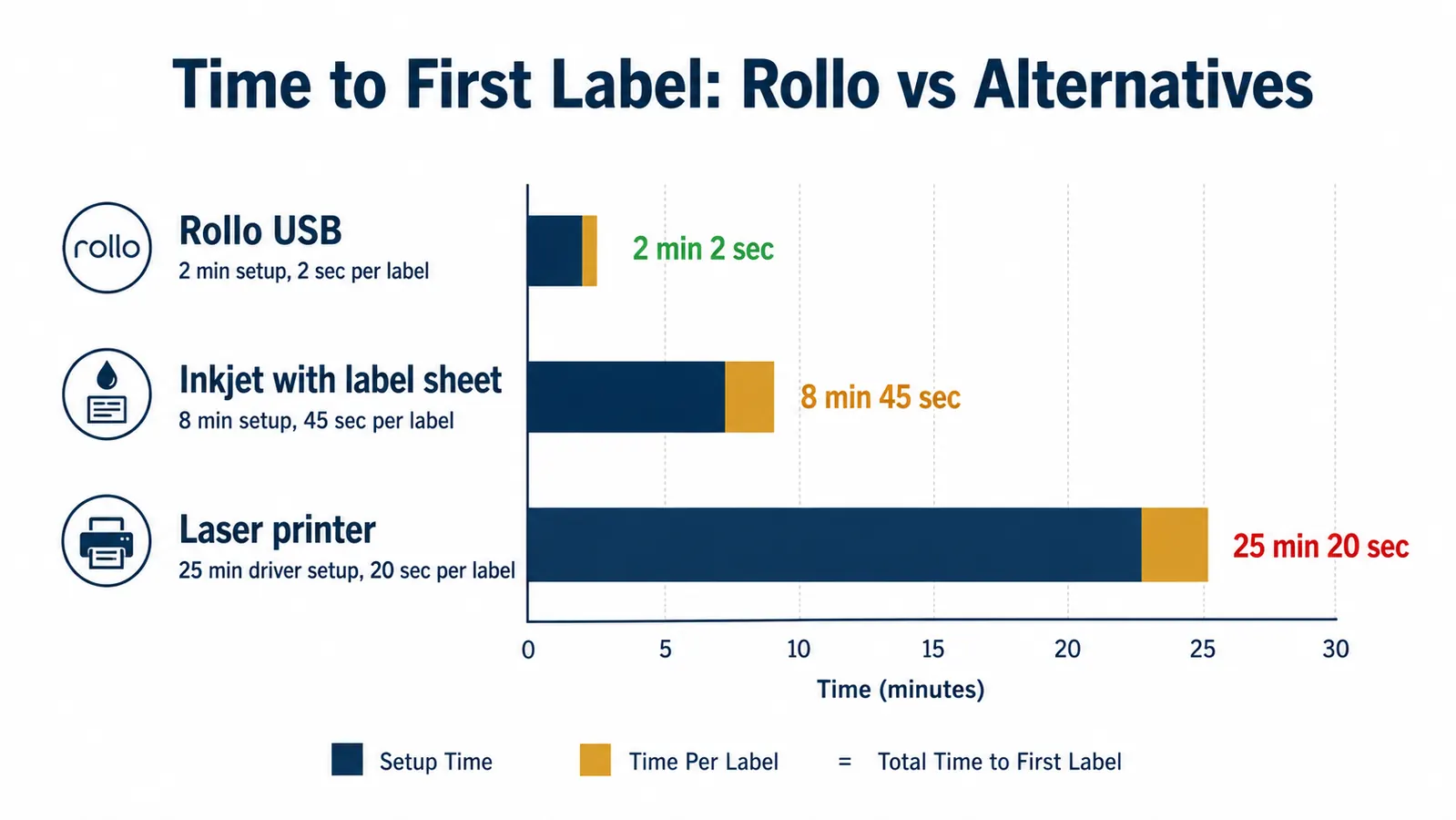
The Rollo USB Thermal Label Printer installs in under two minutes on Mac or Windows, prints a 4x6 label in two seconds, and works with USPS, UPS, FedEx, Amazon, Etsy, eBay, ShipStation, and Pirateship. No ink. No scissors. No tape. Rated 4.6 stars by over 16,000 buyers.
Amazon Check Today's Price on Amazon →The Setup Wins Big, With One Catch
The driverless install is the headline feature and it delivers. On the Mac side, the printer was recognized as a standard printer within about 90 seconds of plugging in the USB cable. No driver download page, no manufacturer CD, no lengthy software wizard. Windows behaves the same way. For anyone who has installed a laser multifunction printer from a major brand recently, the comparison is almost comical.
The catch nobody leads with: the USB cable included in the box has a USB-B connector on the printer end and a USB-A connector on the computer end. If your primary machine is a MacBook Air, a MacBook Pro from 2017 or later, or basically any laptop sold in the past several years with only USB-C ports, the included cable does not plug in. You need either a USB-C to USB-B cable or a USB-A to USB-C adapter. A $6 adapter cable from Amazon solves it completely, but discovering this on the day the printer arrives is an annoying surprise. Buy the adapter before the printer shows up.
Loading the first label roll is the other early stumble. There is a metal guide rail inside the label feed slot that the paper edge has to thread under correctly. The quick-start guide included in the box has a diagram for this, but it is small and printed on glossy cardstock that reflects light at bad angles. Two out of three people I have watched set up this printer on behalf of clients loaded the roll incorrectly on the first try. The result is that the first two or three labels feed at an angle and print crooked. The fix is simple: open the lid, pull the roll back out, thread the paper edge flat under the guide rail, and close. But you need to know to look for that rail in the first place.
The Paper Size Trap That Catches Almost Everyone
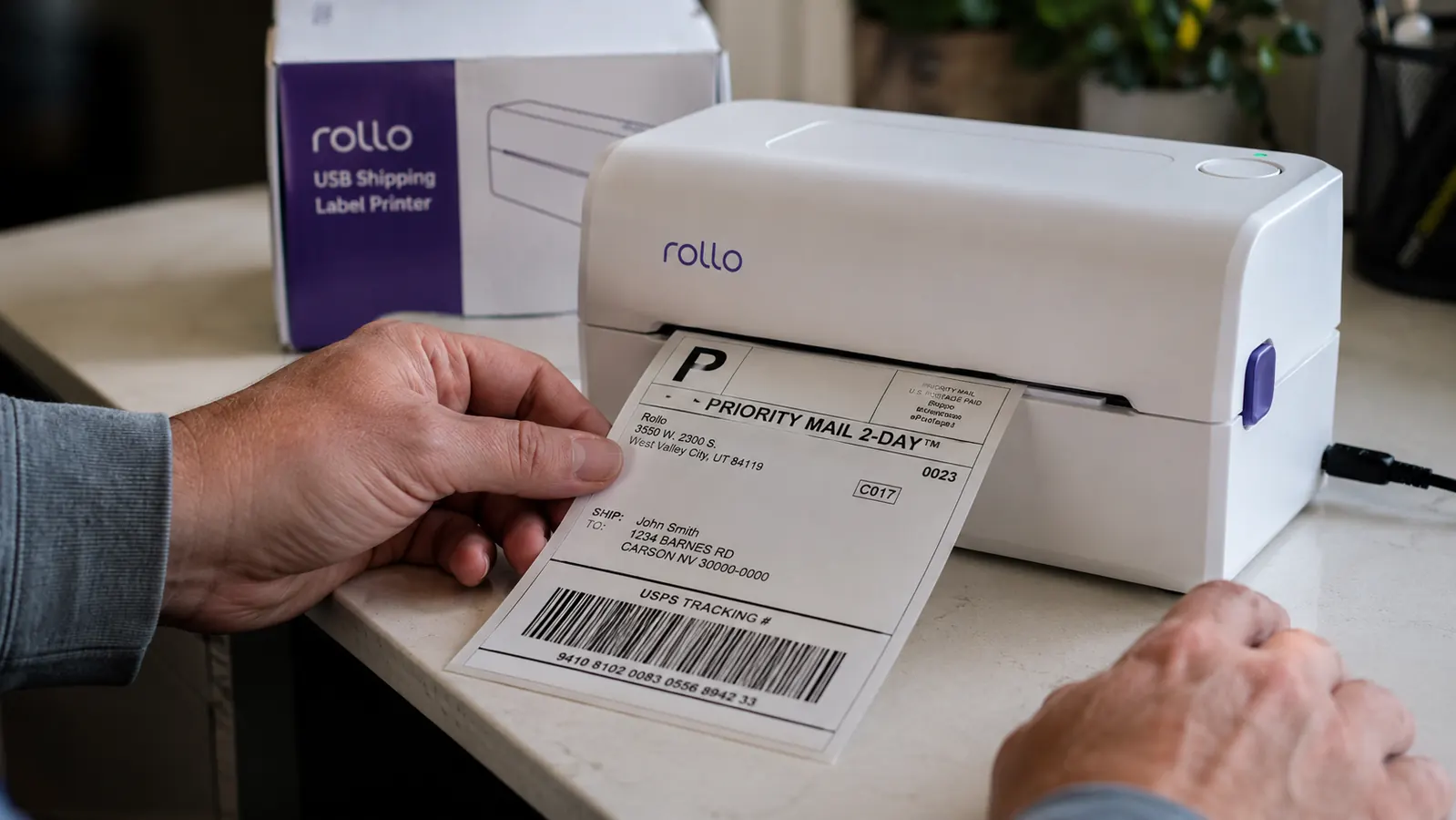
This is the thing most reviews skip entirely, and it is the one that generates the most confused support tickets and Reddit threads about the Rollo. When you print a shipping label from a carrier website, a shipping platform, or a PDF, your browser or print dialog has a default paper size. On most computers that default is US Letter, meaning 8.5 by 11 inches. The Rollo takes 4x6 labels. If your print dialog is still set to Letter when you hit print, the printer receives a job sized for a full sheet of paper and tries to render it on a 4x6 label. The result is either a blank label, a distorted barcode, or a label with tiny address text that no carrier scanner will read.
The fix requires one change in your system settings and it never needs to be changed again. On macOS, go to System Settings, then Printers and Scanners, select the Rollo, open Options, and set the default paper size to 4x6. On Windows, open Devices and Printers, right-click the Rollo, select Printing Preferences, and change the media size to 4x6. Once that setting is saved, every print job to the Rollo defaults to the correct size and you stop thinking about it. But the Rollo ships with zero documentation about this specific step, and the setup video on their website breezes past it without calling it out as the critical step it is.
The Rollo does not fail. Most of the complaints you read online trace back to one system setting that Rollo's quick-start guide does not explain clearly enough. Fix that once and the printer becomes invisible in a good way.
What 'Commercial Grade' Actually Means Here
Rollo markets this printer as commercial grade. That language sets certain expectations if you come from a background in office hardware. Commercial grade in the context of laser printers or document scanners typically means a monthly duty cycle in the tens of thousands, a metal chassis, a hot-swap paper path, and a serviceable print head with manufacturer support. The Rollo is not that kind of commercial grade.
What it does mean in practice is that the print mechanism is built for sustained daily use at the volume a small shipping operation actually generates. The print head is rated for a long useful life under normal thermal printing loads. The motor and feed mechanism can handle multiple consecutive labels without overheating or jamming. For a business shipping 50 to 150 packages a day, the Rollo will run without issue. For a commercial fulfillment center printing 500 to 1,000 labels per shift, you would want dedicated industrial hardware. The Rollo fits squarely in the serious small-business and mid-volume ecommerce sweet spot, which is exactly the buyer who benefits most from it.
The chassis is hard plastic, not metal. It is sturdy enough that casual handling does not flex it and it does not feel cheap when you pick it up. But it is not the kind of hardware you drop and trust to survive. Treat it like a quality peripheral, not a workshop tool, and it holds up fine.
Label Roll Quality Matters More Than the Packaging Suggests
The Rollo is compatible with any 4x6 thermal label roll from any manufacturer, not just Rollo's own branded rolls. That is genuinely good news for cost control. Generic 4x6 thermal label rolls are widely available and run significantly cheaper per label than branded alternatives. The printer accepts them without protest and the print quality is indistinguishable.
The caveat is that not all generic rolls are equal. Cheap thermal label stock from unverified sellers can vary in coating thickness and label gap spacing. When the gap spacing between labels differs slightly from what the printer expects, the auto-sensor that tells the Rollo where one label ends and the next begins can miscalculate. The printer then feeds past a label gap and prints straddling two labels, which makes both unusable. The fix is to press the calibration button on the back of the printer once when you switch to a new roll from a different supplier. The printer feeds one blank label to reset its sensor, and from that point it feeds accurately for the rest of the roll.
The practical lesson: buy label rolls from consistent suppliers. Pick one generic brand that works and order in bulk. Switching between five different suppliers to save pennies per roll introduces calibration drift that costs you more in wasted labels and troubleshooting time than you saved on price.
Real-World Print Quality and Carrier Compatibility
Thermal printing produces sharp, high-contrast output without ink. The barcodes the Rollo prints are clean and scan without hesitation at USPS counters, UPS drop-off points, and FedEx locations. In practical terms, the print quality is better than what a standard inkjet produces on adhesive label sheets, both in resolution and in durability. Inkjet label ink can smear if the label gets wet. Thermal printing is inherently waterproof because the image is heat-fused into the label coating rather than sitting on top of it as ink.
Platform compatibility is broad. USPS Click-N-Ship, UPS Online, FedEx Ship Manager, Amazon Seller Central, Etsy, eBay, ShipStation, and Pirateship all send labels to the Rollo through the standard print dialog. No special app, no dedicated software, no platform-specific plugin. Select the Rollo as your printer, confirm the 4x6 paper size, print. The printer is invisible to the platform in the best way: it just looks like a printer to every application you use.
One real limitation: thermal labels are heat-sensitive. This is a property of the label coating, not the printer, but it is worth knowing. A box of printed labels left in a car on a hot summer day will fade. Labels stored in a desk drawer or a cool indoor environment stay crisp for months. If your workflow involves printing labels in advance or bulk-preparing shipments that sit before pickup, keep them out of direct sunlight and away from heat sources.
The USB-Only Design: Limitation or Non-Issue?
The Rollo USB model has no wireless connectivity. No Wi-Fi, no Bluetooth, no network adapter. The printer must be physically connected to a computer via the USB cable to receive print jobs. For the majority of shipping setups, this is a complete non-issue. Your packing station sits next to your computer, the cable runs between them, done. The connection is more reliable than wireless and there are no pairing issues, no network dropouts, and no firmware updates that break the wireless stack.
Where it becomes a real limitation is any workflow that involves printing from a mobile device or from a workstation that is physically separated from the packing area. If you want to print labels from your iPhone while standing at a packing table away from your desk, the USB Rollo cannot do that. Rollo sells a dedicated Wi-Fi model for a meaningful price premium that solves this problem. Before buying, think honestly about your physical setup. If the printer can reasonably sit within cable reach of your primary computer, the USB model is fine. If you genuinely need wireless, pay the premium for the right tool rather than working around a limitation.
Honest Comparison to the Alternative
The main alternative buyers consider is the DYMO LabelWriter 4XL. The DYMO prints at roughly the same speed and produces comparable label quality. Where DYMO differs is in driver requirements and ecosystem lock-in. DYMO requires its own software to be installed, which adds setup complexity and occasionally creates conflicts after operating system updates. DYMO also has a history of changing its label format support between hardware generations, which has frustrated buyers who upgraded and found their label templates broken.
The Rollo's driverless install and standard printer behavior means it is immune to that kind of ecosystem problem. It does not care which operating system version you run or whether you update your shipping platform. It is a dumb printer in the best sense: it receives print jobs and prints them. For a detailed side-by-side breakdown of both printers, the Rollo vs DYMO LabelWriter comparison covers price, driver setup, and long-term cost per label.
What I Liked
- True driverless install on macOS and Windows: recognized as a standard printer in under two minutes
- Prints a 4x6 label in approximately two seconds with sharp, scanner-readable barcodes
- Works natively with USPS, UPS, FedEx, Amazon Seller Central, Etsy, eBay, ShipStation, and Pirateship without plugins
- No ink, no cartridges, and no proprietary consumable lock-in: any 4x6 thermal roll works
- Thermal output is inherently waterproof and more durable than inkjet label printing
- One-button calibration handles label roll supplier variations quickly
Where It Falls Short
- USB-B cable included in box is incompatible with modern laptops that have only USB-C ports
- Paper size must be manually set to 4x6 in system settings before the first print job or labels print incorrectly
- No wireless option on this model: requires physical USB connection to a computer at all times
- Thermal labels fade in heat or direct sunlight, which requires mindful storage of pre-printed labels
- First roll loading has a non-obvious guide rail step that causes misfeeds if missed
Who This Printer Is Right For
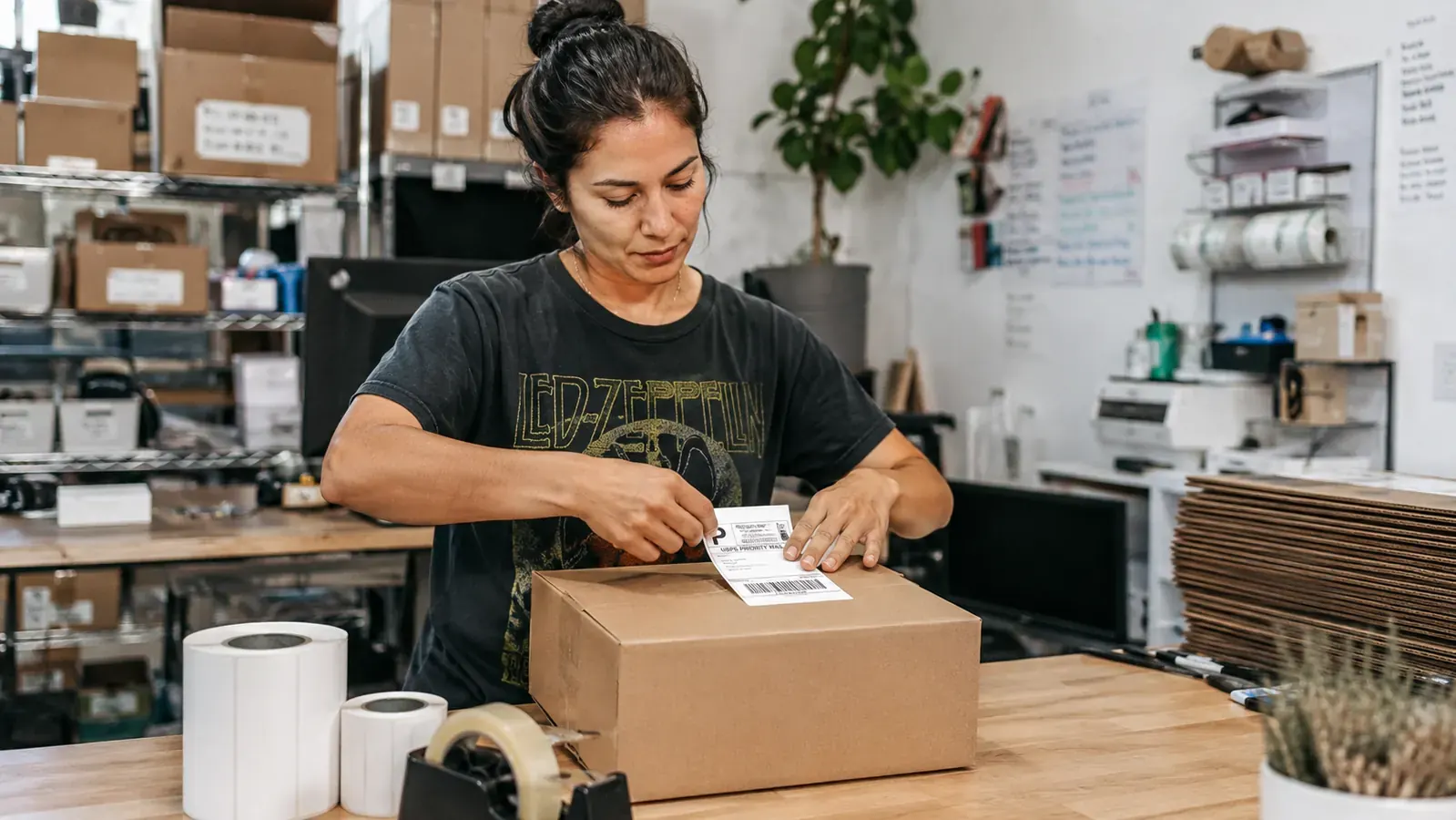
The Rollo USB is the right call for any seller or small-business operator who ships physical products from a fixed station where a laptop or desktop is nearby. If you run a Shopify, Etsy, Amazon, or eBay business and you are producing more than a couple dozen shipments per week, this printer will make that part of your operation faster, cleaner, and more professional looking. The driverless setup means it integrates into any existing workflow without IT involvement. The print quality means carrier staff never question your labels.
It also makes sense as a first label printer if you are setting up a shipping operation and want to start with the tool you will actually keep rather than upgrading from a cheaper option later. The friction is in the first 30 minutes of setup, all of which is solvable with the information in this review. After that initial friction, the Rollo becomes the most reliable piece of equipment on your packing table.
Who Should Look Elsewhere
If you ship fewer than 15 to 20 packages per week, a thermal label printer is a premium upgrade that your current volume does not justify yet. Printing labels on letter paper is a worse experience but not a catastrophic one at low volumes. Add this to your setup when shipment volume turns the time savings into an obvious win.
If your shipping workflow is mobile-first, meaning you manage orders on a phone or tablet and want to print from wherever you are in the building, pay for the Rollo Wi-Fi model. Workarounds for the USB connection exist but they are fiddly and unnecessary when the right product for your use case is available. And if you want to understand the broader time savings a label printer generates before committing to the purchase, the numbers are laid out in our Rollo long-term review, which tracks label output and time savings over a full six months of ecommerce shipping.
The three setup gotchas are solvable in under 10 minutes. Everything after that is just printing.
The Rollo USB Thermal Label Printer earns its place on any serious shipping table. Grab the right USB-C cable before it arrives, set your default paper size to 4x6 on day one, and thread that guide rail correctly on the first roll load. After that, it is the most reliable tool in the fulfillment workflow. Check current pricing on Amazon.
Amazon Check Today's Price on Amazon →